
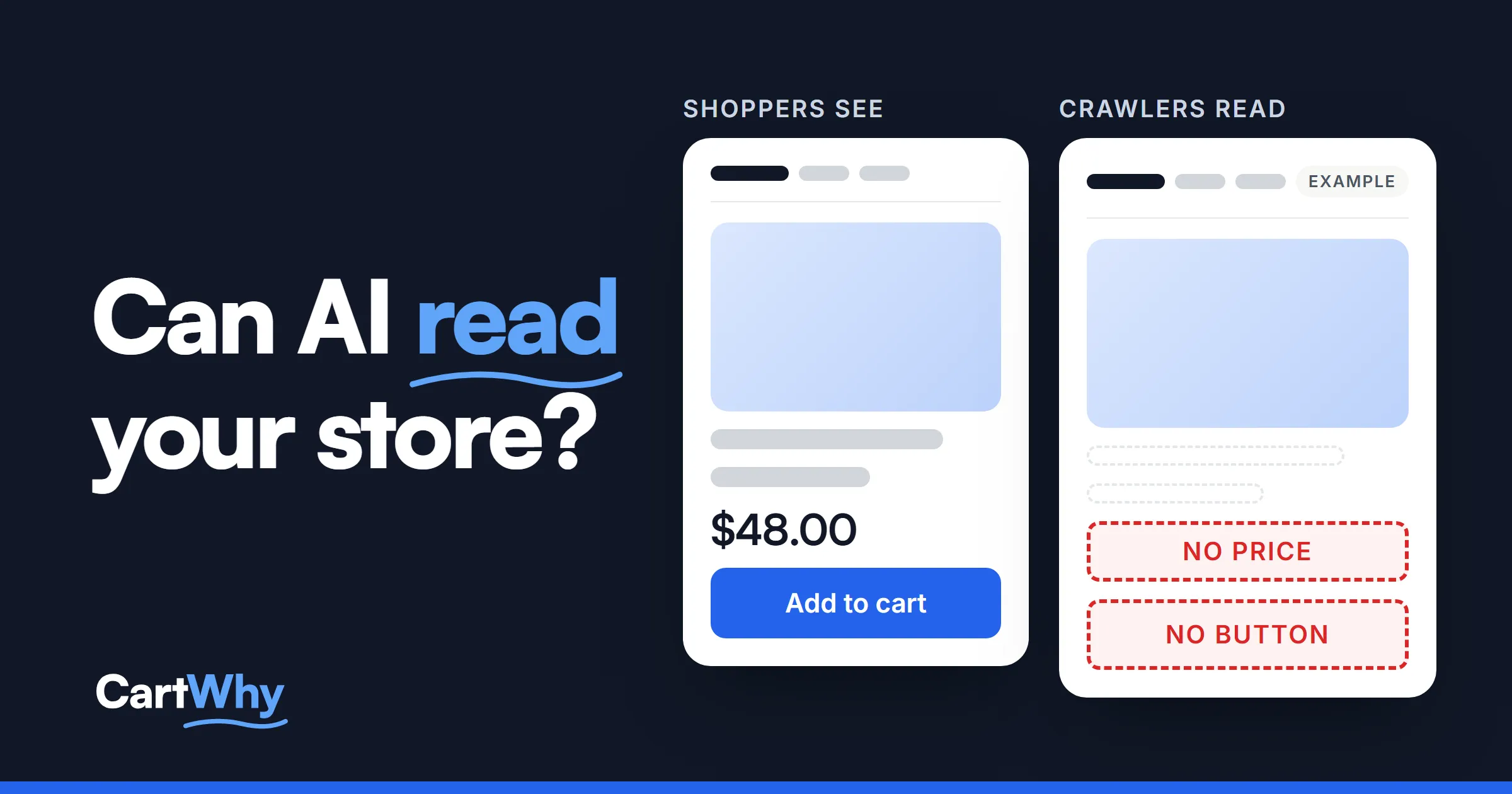
Can ChatGPT read my Shopify store? It can, if three things are true: your robots.txt lets the crawler behind ChatGPT search in, your pages carry no noindex or nosnippet rule (Google’s controls for what search shows), and your products, prices and policies are in the page itself rather than added later by scripts. You can check all three in about 15 minutes, without a developer.
What you can’t check, and what nobody can promise, is what an AI tool will say about your store. Its answers change with the person asking, where they are and the day. These checks cover the part you control.
Can ChatGPT read my Shopify store? What it depends on
When someone asks ChatGPT search, Perplexity, Claude or Google’s AI features a shopping question, the tool doesn’t browse your store the way a person does. It mostly relies on crawlers, programs that fetch your pages and read the HTML they get back. Three things decide what it gets:
- Access. Your robots.txt file, a short text file at the root of your site, says which crawlers may fetch which pages.
- Permission to quote. A
noindexornosnippetinstruction tells Google, and other engines that honor it, not to show a page, or not to show text from it. - Readable text. Google renders JavaScript in a separate, later step, and says that not all bots can run JavaScript. If your price and stock appear only after scripts run, a crawler that doesn’t run them sees a page without a product.
Google also says its AI features need no special files, markup or structured data: a page has to be indexed and eligible to be shown with a snippet. The checks below follow that.
Which crawlers matter
Not every AI bot is a search bot, and the difference matters for your robots.txt.
| Crawler | Company | What it does | If you block it |
|---|---|---|---|
| OAI-SearchBot | OpenAI | Surfaces websites in ChatGPT search | Your pages aren’t shown in ChatGPT search answers, though they can still appear as navigational links |
| GPTBot | OpenAI | Collects pages that may be used to train OpenAI’s models | Only training is affected; OpenAI says each setting is independent |
| ChatGPT-User | OpenAI | Fetches a page when a user asks ChatGPT to | OpenAI says robots.txt may not apply to it |
| Claude-SearchBot | Anthropic | Fetches pages to improve Claude’s search results | Fewer of your pages in Claude’s search |
| Claude-User | Anthropic | Fetches a page when a person asks Claude a question | Claude can’t fetch your page for that person’s question |
| ClaudeBot | Anthropic | Collects pages for training | Only training is affected |
| PerplexityBot | Perplexity | Surfaces and links websites in Perplexity results; not used for training | Your pages aren’t indexed for Perplexity search |
| Perplexity-User | Perplexity | Fetches a page when a person asks Perplexity a question | Perplexity says it generally ignores robots.txt, since a person asked |
| Googlebot, Bingbot | Google, Microsoft | Index pages for normal search, which Google’s AI features draw on | The page can’t be crawled for normal search either |
So “block AI” isn’t one switch. You can block GPTBot to keep your text out of training and still let OAI-SearchBot in for ChatGPT search.
One more path to know about: if your store sells through ChatGPT or Microsoft Copilot as agentic storefronts, Shopify sends your product data to them through Shopify Catalog. Shopify says that happens independently of robots.txt, which controls only open-web crawlers.
Check 1: robots.txt (3 minutes)
Open yourstore.com/robots.txt in your browser. Shopify gives every store a default file. It blocks pages that shouldn’t be crawled, such as the admin, cart, checkout, account pages and filtered or sorted collection URLs, and it names no AI crawler.
Read it top to bottom. Each group starts with User-agent: and lists Disallow: rules for that crawler. Look for:
Disallow: /under OAI-SearchBot, PerplexityBot, Claude-SearchBot, Googlebot or Bingbot: that crawler is shut out of the whole store.Disallow: /underUser-agent: *: every crawler is shut out, including the search ones, even though none is named.Disallow: /products/or/collections/for those crawlers: they’re shut out of the pages that matter most.- A crawler name that no company documents, such as a misspelling: the rule does nothing, so the store isn’t blocking what someone thought it was.
Disallow: /policies/orDisallow: /search: Shopify says an older custom template can still carry these, though the current default doesn’t. The first hides your shipping and returns pages, which check 4 depends on.
The default file’s blocks on admin, cart and checkout are normal. What you’re looking for is anything that blocks products, collections and pages you want found. Two things to keep in mind: Shopify calls these rules directional and advisory, so not every crawler follows them; and a blocked page can still appear in Google as “indexed, though blocked by robots.txt”. Robots.txt stops crawling, not indexing.
What to change: On Shopify, robots.txt is edited through a robots.txt.liquid template in your theme (Online Store, Themes, Edit code). Shopify says Support can’t help with this file and that incorrect use can result in loss of all traffic. Deleting the template restores Shopify’s default. Work on a duplicate theme, or have a developer make the change.
Check 2: noindex and nosnippet (3 minutes)
Open your best-selling product page, right-click, choose View page source (or press Ctrl+U, Cmd+Option+U on a Mac) and search for robots.
noindexkeeps the page out of search altogether. Fine on a page you hide on purpose, wrong on a product page.nosnippetlets the page be indexed but stops text from being shown. Google says it also stops the content from being used as a direct input for AI Overviews and AI Mode.max-snippet:0is the same asnosnippet.max-snippet:-1means no limit and is fine.index, followis the normal setting. Leave it.
Repeat on a collection page and the home page. If you use Google Search Console, its page indexing report also lists pages excluded by a noindex tag.
What to change: These usually come from an SEO app or a line in the theme. Check the app’s settings first; if the theme prints the tag, remove it there, testing the change on a copy of your theme before it goes live.
Check 3: the product page without JavaScript (5 minutes)
- In Chrome on a computer, open a product page.
- Open the developer tools (F12), press Ctrl+Shift+P (Cmd+Shift+P on a Mac), type “Disable JavaScript” and choose it.
- Reload the page.
What’s left is close to what a crawler that doesn’t run scripts gets. A readable product page still shows:
- the product name;
- a real price with a currency, not “Loading” or “$0.00”;
- whether it’s in stock, as text;
- the description, specifications and size information;
- the options, as text;
- reviews, if you show them.
Do the same on a collection page: are product names, links and prices in the grid? Then turn JavaScript back on (same command, “Enable JavaScript”).
You can also search the page source for your product’s name, its price, a sentence from the description, and a sentence from a closed tab or accordion. If they’re in the source, a crawler can read them.
What this looks like on a real store: in a sample audit we ran on a US store, the product data, prices, variants and descriptions were all in the HTML. But an app hid the whole page until its script ran, so with scripts off, the home page, a collection and a product page showed only the menu. The fix wasn’t new content or a new file. It was stopping the app from hiding the page from anything that doesn’t run its script.
What to change: Common causes are a page-builder or filter app that draws the collection grid in the browser, a variant picker from an app, a currency app that replaces the price after load, reviews injected by a script, tabs that fetch their text when clicked, and a full-screen pop-up or country selector that covers the page. Many apps have a setting to print their content in the page itself. Facts saved only as images, such as a size chart, need to become text.
Check 4: the pages that answer questions (3 minutes)
Shoppers ask assistants more than “what is it”: how long shipping takes, whether they can return it, who runs the store. If those answers aren’t written on your site, a tool can’t take them from you.
Open your shipping and returns pages. Does the shipping page say where you ship, what it costs or the free-shipping threshold, and how many days it takes? Does the returns page state the window in days, who pays for return shipping and how to start a return? Does an about or contact page say who runs the store? And do the figures agree everywhere? “30 days” on one page and “14 days” on another means one of them will be wrong when it’s quoted.
What to change: Fill your policies in Shopify with the real figures, one plain sentence per fact, link the pages in the footer, and keep each figure in one place.
Do I need llms.txt or special AI markup?
Not for Google. Its AI features page says you don’t need new machine-readable files, AI text files or markup, and that no special structured data is required. The page needs to be indexed and eligible to be shown with a snippet.
Shopify already manages an agents.md file for every store, and by default /llms.txt and /llms-full.txt mirror it. You can open them on your own store. They do no harm, but if your product page has no price without JavaScript, no text file will fix that. Do the four checks first.
What not to waste money on
- A file sold as AI visibility on its own. Google says it needs no special AI text files, and Shopify already serves one.
- “AI visibility scores” as proof. Many are built from a set of questions asked on a given day. Since AI answers change with the person asking, their location and the day, read such a score as a snapshot, not a measure of your store.
- Rewriting your whole catalog with AI. Clear facts written as text help. More words don’t.
When to get help
If the checks came back clean, the next step is ordinary SEO care. If your robots.txt has hand-written rules, the product page is empty without JavaScript, or the policies are thin, the fixes are in the theme and in Shopify settings. Our AI search audit checks whether AI search crawlers can reach your pages and read your products, prices and policies, with no store access needed, and ranks each fix. We don’t test or promise what AI tools answer. If you’d like the fixes made, AI search optimization makes them in your theme. For conversion and SEO in the same report, see the full store audit. Slow pages make all of this harder: see why your Shopify store is slow.
Questions store owners ask
If I block GPTBot, can ChatGPT still read my store?
For ChatGPT search, yes. OpenAI says GPTBot is for training and OAI-SearchBot is for search, and each setting is independent. Make sure your rules don’t block both.
Does Shopify block AI crawlers by default?
No. Shopify’s default robots.txt blocks the admin, cart, checkout, account pages and filtered or sorted collections, and names no AI crawler. Blocks usually come from a custom robots.txt.liquid template added by someone on the team or by an app.
Is it safe to edit robots.txt myself?
Shopify calls it an unsupported customization and warns that incorrect use can result in loss of all traffic. If you do it, change one rule at a time, keep a copy of the original file, and open /robots.txt afterwards to check the result.
Is this the same as SEO?
They overlap. Both need open, indexable pages and correct product data. AI search depends more on pages being readable without scripts, since not every crawler runs them, and on facts written as text, like shipping, returns, sizes and materials.
How often should I check this?
After theme changes, new apps or robots.txt edits, and a few times a year otherwise. A new app can make a page that was readable stop being readable.
Sources
- OpenAI, Overview of OpenAI crawlers
- Anthropic, Does Anthropic crawl data from the web
- Perplexity, Perplexity crawlers
- Google Search Central, AI features and your website
- Google Search Central, Robots meta tag
- Google Search Central, JavaScript SEO basics
- Shopify Help Center, Editing robots.txt.liquid
- Shopify developer docs, agents.md.liquid