
Why is my Shopify store slow? Usually because of what was added on top of the store, not Shopify itself. Shopify names three things that affect speed: your theme, your apps, and third-party code such as tag managers. In practice: app scripts on every page, code left by removed apps, large images sent to phones, and scripts that run too early. Here’s how to find yours.
Is it your store, or is Shopify slow today?
Rule this out first. If your storefront and your Shopify admin are both suddenly slow, check Shopify Status (status.shopify.com). If only the storefront is slow, and it has been for a while, the cause is on your store.
Then check where it’s slow. A store can feel fine on office Wi-Fi and slow on a phone on mobile data, which is how many shoppers see it.
Why is my Shopify store slow? Start with the right number
Google’s PageSpeed Insights (pagespeed.web.dev) shows two kinds of numbers, and they answer different questions.
The score (0 to 100) is a lab test: one simulated load of the page, on a test phone with a fixed network. Google says it’s useful for finding problems, and that the result can vary between runs, because of the network, the device and the machine running the test. Run the same page twice and the score can differ.
The real-visitor numbers at the top come from people using Chrome on your store over the previous 28 days. They’re the closest thing to what shoppers felt, but shoppers on Safari, common on iPhones, aren’t counted. If a page has too few visits, PageSpeed shows the numbers for your whole site instead, and a store with few visitors may have none; then the lab test is what you have. The two can disagree in either direction, so read both.
Google gives a “good” line for each of the three real-visitor measures, judged so that three out of four visits meet it:
| What it measures | In plain words | Good |
|---|---|---|
| Main content | How long until the biggest thing on the screen, usually the product image, appears | 2.5 seconds or less |
| Response to a tap | How long the page takes to react when a shopper taps or clicks | 200 milliseconds or less |
| Page jumping | How much the layout moves while it loads | 0.1 or less |
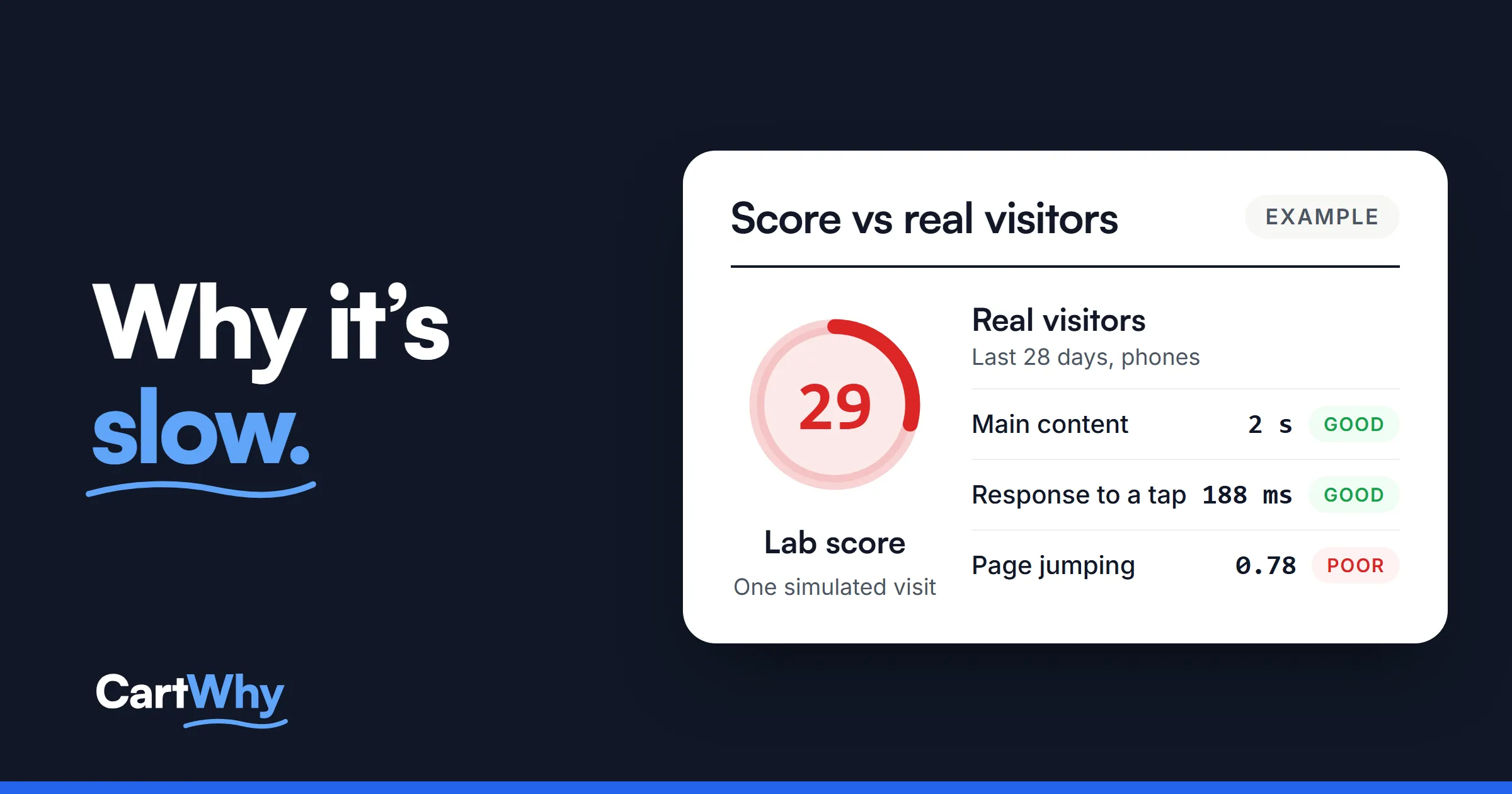
An example from the sample audit we publish pages from: Google’s lab test scored the store’s product page 29 out of 100 on phones, yet real visitors saw the main content in about 2 seconds, inside Google’s good line. What failed for real visitors was the page jumping while it loaded: a layout shift of about 0.8, against a good line of 0.1. A score alone would have pointed at the wrong problem.
How to check it yourself, in ten minutes
- Open PageSpeed Insights and paste your best-selling product page, not your home page. That’s where buying decisions happen, and apps often load there.
- Stay on the Mobile tab.
- Read the real-visitor block first and note which of the three measures fails, if any. Check whether it says “This URL” or “Origin”: origin means the whole site, not this page.
- Scroll to the diagnostics and look for app names and tag managers in the lists of scripts.
- Run the test three times. The score will move; the list of slow scripts stays much the same.
- Repeat for your home page and your largest collection.
Keep these results. Whatever you change later, they’re your “before” numbers.
The failing measure points you to the likely cause:
| If this fails | Look first at |
|---|---|
| Main content | The first image or video, and scripts that block the page (causes 3 and 4) |
| Response to a tap | App scripts and tracking tags (causes 1, 2 and 5) |
| Page jumping | Banners, app widgets and images without space reserved (cause 4) |
Cause 1: apps that load on every page
What you see: Reviews, chat, upsells, pop-ups, currency converters and size guides, each loading its own script on every page, including pages where it does nothing.
Why it matters: Shopify says too many apps loading assets on your storefront can slow it down. Every script is a file to download and code to run before the page responds, and a phone on mobile data feels each one.
How to check: In the PageSpeed diagnostics, look for scripts from other domains and match them to your apps. Then go through your apps list and ask of each one whether you’d notice if it were gone.
What to change: Remove the apps that no longer pay for themselves; before removing one, check whether your theme already does the same job. For the apps you keep, check their settings or ask their support whether the app can load only on the pages that use it. Where it can’t, a developer can often limit it in the theme.
Cause 2: apps you removed, still loading
What you see: A short apps list, but the page still loads scripts from apps you uninstalled months ago.
Why it matters: Shopify says some apps add code to your theme that isn’t automatically removed when you uninstall them. That code can keep loading on every page, for an app you no longer pay for.
How to check: View the source of your product page (in a desktop browser, right-click and choose “View page source”) and search for the names of apps you’ve removed. You can also search for them in your theme under Online Store, Themes, Edit code.
What to change: Remove the leftover code from the theme, working on a duplicate of your live theme, not the theme itself. Some app developers publish removal instructions; check their help pages first. If you’re not comfortable in the code editor, this is a job for a developer.
Cause 3: images and video sized for desktop
What you see: A full-width slider or a video at the top of the home page, a large image added by an app or a page builder, a page with dozens of images.
Why it matters: Shopify notes that pages with many high-quality images can load slowly. The main-content measure usually waits for the largest image on the first screen, so if that image is heavy, the whole page feels slow.
How to check: In PageSpeed, look for lines about image size and format. On your phone, watch whether the product image is the last thing to appear.
What to change: Shopify’s image service resizes an image when the theme asks for a width, and picks a modern file format for each browser, so re-saving every photo is rarely the fix. Check that the theme asks for sensible widths on phones. Look instead at images and videos added by apps, page builders or custom code, which may skip that resizing. Make sure the first image loads first, and loads images further down only when the shopper scrolls to them. Think twice about sliders and autoplay video at the top; one clear image is usually enough.
Cause 4: theme code, fonts and layout
What you see: The page waits before anything appears, the text changes font after a moment, and an announcement bar pushes everything down.
Why it matters: Scripts and fonts that load before the page is drawn delay everything behind them. Shopify’s guidance says animations can slow pages and that a high number of sections on a page can lower performance. A page that moves while loading makes shoppers tap the wrong thing, which is what the page-jumping measure counts.
How to check: In PageSpeed, look for advice about render-blocking resources, meaning scripts and styles the page waits for before it shows anything; the layout-shift section names the elements that moved. Count the sections on your home page template.
What to change: Let scripts wait until the page works, show text while fonts load, reserve space for images, banners and app widgets so nothing jumps, and remove sections that do no work.
Cause 5: tracking tags and pixels
What you see: Analytics, ad pixels for several platforms, heatmap tools and testing scripts, some added years ago by someone who has since left.
Why it matters: Each tag is more code on every page. Shopify recommends auditing your tag manager and removing unused or low-value tags.
How to check: List every tracking tool on the store, in your tag manager and in the theme, and ask who still uses the data.
What to change: Remove the tags nobody uses, and load the rest after the page is ready where you can.
What a theme change can’t reach
Shopify runs the checkout, and no theme change reaches it. If the slow part is after the cart, speed work in the theme won’t change it. The theme controls the home page, collections, product pages and the cart, and that’s where speed work happens.
The five PageSpeed checks, not only the score
Lighthouse, the test behind PageSpeed Insights, now reports five categories. The speed score is only the first.
| Check | What it looks at |
|---|---|
| Performance | How fast the page loads and responds on a test phone, and whether it jumps |
| Accessibility | Whether people using a screen reader, a keyboard or zoom can use the store |
| Best Practices | Code health: browser errors, outdated code, images shown at the wrong size |
| SEO | The basics search engines need: titles, descriptions, followable links, robots rules |
| Agentic Browsing | Checks for AI agents that use the page: labeled buttons and form fields, a stable layout, and new files and markup made for agents. Google calls it experimental, so treat it as a direction, not a grade |
An automated accessibility test finds only part of the problems, so nobody can call a store compliant from it. Browser errors listed under Best Practices are still worth reading: they point to code that isn’t working as written.
What not to do
- Don’t install a speed app as the first step. Some help with one thing, but every app is more code. Find the cause first.
- Don’t chase 100. The lab score moves between runs and doesn’t measure sales. Fix what slows real visitors, then check that their numbers improve.
- Don’t edit the live theme. Duplicate it, make the changes on the duplicate, compare, then publish, and keep the old theme saved.
What to expect after a fix
The lab score changes the same day. The real-visitor numbers cover the previous 28 days, so a change shows fully about four weeks after it goes live. No one can honestly promise a score or a load time; what you can have is a test before and after each change, with the same tool, on phone and desktop.
When to get help
If your checks turned up an app or two to remove and a theme that asks for the wrong image width, do that first and test again. If the PageSpeed list is long, names apps you no longer have, or points at theme code, that’s work in the theme files. Our speed optimization does exactly that: a full speed check first, a written list of changes, work on a copy of your theme, and numbers before and after every change. It’s the one service that doesn’t need an audit first. If you also want conversion, SEO and AI search checked, start with the full store audit. And if pages are slow and sales are low, read why your Shopify store isn’t converting.
Questions store owners ask
Why is my Shopify store loading slow only on phones?
Phones have less processing power and often slower connections, so large images and heavy scripts cost more there. Google’s lab test also runs on a simulated phone. Check the Mobile tab first.
Why is my score different every time I test?
The score comes from one simulated visit, and Google says results vary between runs, partly because of network conditions. Compare several runs and look at the real-visitor numbers next to the score.
Will removing apps break something?
It can, if the theme relies on something the app did. Remove apps one at a time, on a copy of the theme where possible, and check the product page and the cart after each one.
Is a new theme faster?
Not by itself. A new theme loses every change made to the old one, and your apps add their code to the new theme too. Measure first, and replace the theme only when the old one is too edited to fix well.
Will a faster store sell more?
We don’t promise sales, rankings or a conversion rate from speed work. A faster product page shows the price and the button to shoppers who might otherwise have left while waiting. Whether they buy depends on the rest of the page.